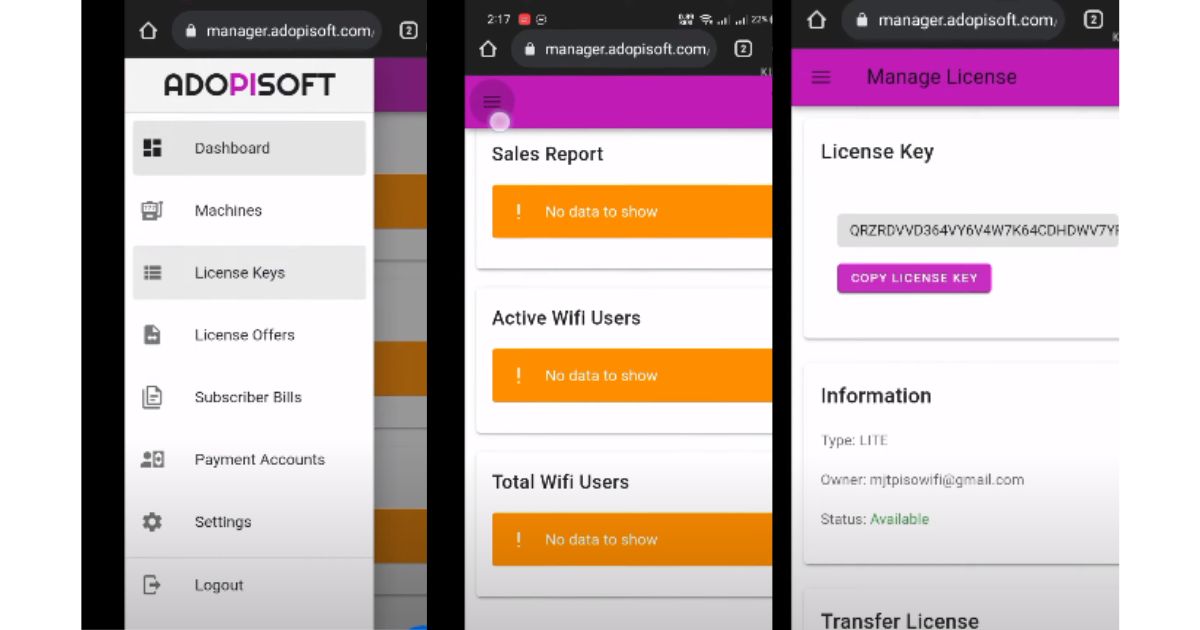
Activating your Piso WiFi vending machine with a license key is important to access the full features and benefits of the AdoPiSoft software.

This guide will help activate your license including the different methods available.
Steps to Activate Piso License Key
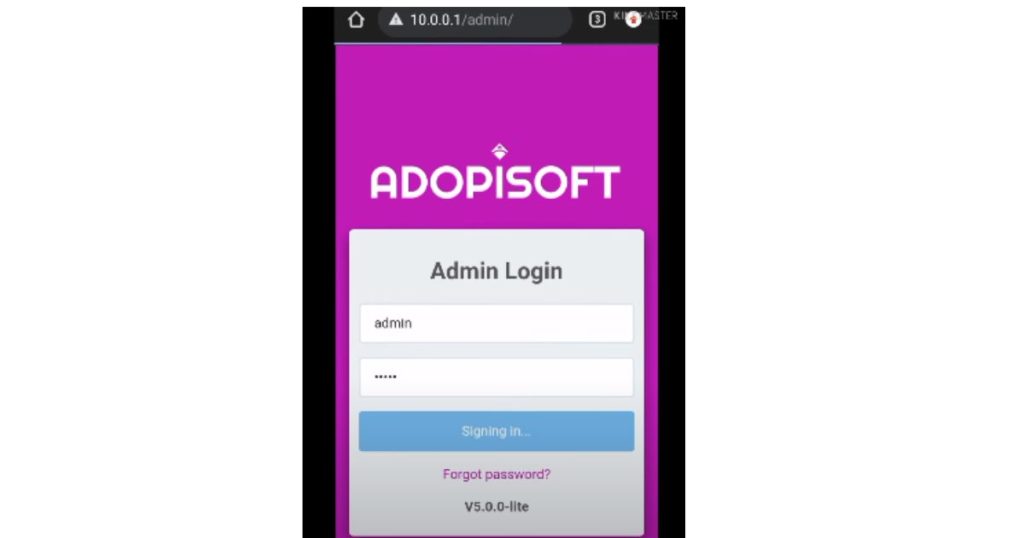
1. Manual Activation
Step 1: Connect to Your Machine to Activate Piso License Key
- Open your WiFi settings and connect to your Piso WiFi machine.
Step 2: Access the Admin Dashboard to Activate Piso License Key
- Open a web browser and type 10.0.0.1/admin to access the admin dashboard.
Step 3: Enter License Key
- Go to the ‘System’ section and scroll down to find the space for the license key.
- Input your license key, email, and password. These credentials should match those used for your Adopisoft Manager account.
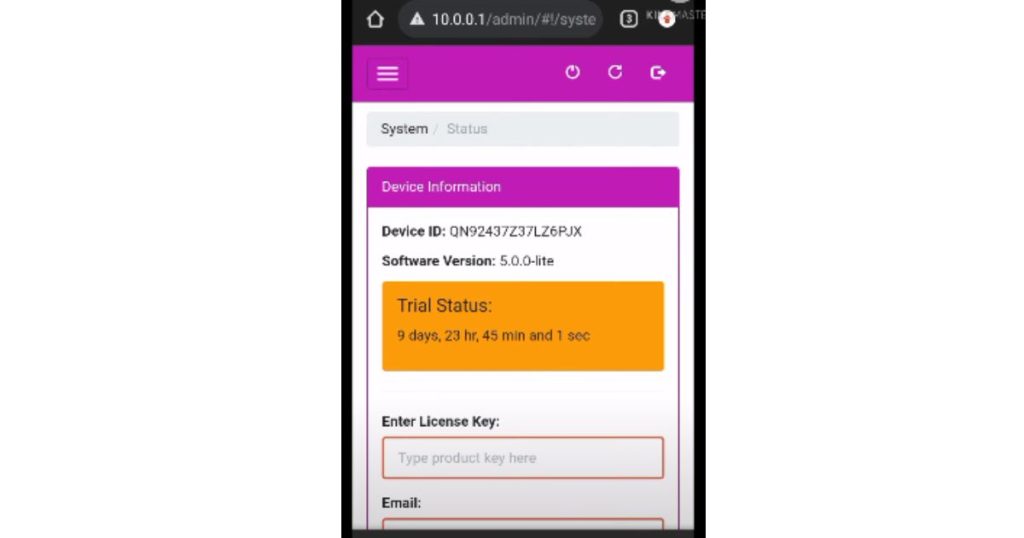
Step 4: Activate the License
- After entering the required information, click ‘Activate’. Your license key will now be activated and connected to your machine.
Step 5: Revoke and Reactivate (if needed)
- If you need to transfer your license to another machine or upgrade your software, you can revoke the license by selecting the ‘Revoke License’ option under the ‘System’ section.
READ: LPB Piso Wifi Setup, Pause Time, Login, Admin Settings, and More
2. QR Code Activation (Adopisoft Version 5.1.3 and Up)
Step 1: Download the App
- Download the Adopisoft app from the Google Play Store.
Step 2: Scan the QR Code
- Open the app and scan the QR code found in the ‘Device Information’ menu of your admin dashboard.
Step 3: Input Device Alias and Select License
- After scanning, input the device alias and select the available license from your account manager.
Step 4: Complete Activation
- Click the activation button and wait for the process to complete. Reboot your machine to finalize the activation.
3. Activation After Reflashing
Step 1: Reconnect to the Machine
- After reflashing your machine, reconnect to it via WiFi.
Step 2: Access Admin Dashboard
- Open a web browser and go to 10.0.0.1/admin.
Step 3: Enter License Key
- Go to the ‘System’ section and input your license key, email, and password.
Step 4: Activate the License
- Click ‘Activate’ to complete the process.
Troubleshooting Tips To Activate Piso License Key
- Check Internet Connection: Confirm your machine is connected to the internet during the activation process.
- Correct Credentials: Double-check that the email and password entered match those used for your Adopisoft Manager account.
- Revoke and Retry: If activation fails, try revoking the license and reactivating it.
READ: LPB Piso Wifi Router Login Portal
Conclusion
Activating your Piso WiFi license key can help your vending machine operate efficiently. If you choose manual activation or the QR code method, following these steps will help you get your machine up and running in no time. For more detailed tutorials and support, visit the Adopisoft website.